How to Back Up Your Diary on Android So You Never Lose an Entry
Phones break and get lost. Learn how to back up your diary entries on Android, the difference between local and Google Drive backup, and how to restore safely.
- Why a diary that lives only on your phone is at risk
- Local backup vs Google Drive backup, explained
- How to test that your backup can actually be restored
Years of diary entries can disappear in a second: a phone dropped in water, stolen on a train or wiped during a repair. Backing up your diary takes a few minutes and protects writing you can never replace.
Why your diary needs a backup
Most diary apps store entries on the phone itself, which is good for privacy and offline writing. The trade-off is that if the phone goes, the entries go with it, unless you've made a copy somewhere else.
Common ways people lose diaries:
- Phone lost or stolen.
- Phone damaged beyond repair.
- Factory reset during a repair or update.
- Uninstalling the app by mistake.
- Switching to a new phone without moving app data.
Types of diary backup
| Backup type | Where it's stored | Protects against | Watch out for |
|---|---|---|---|
| Local backup file | On your phone's storage | Uninstalling the app, app errors | Doesn't help if the phone is lost |
| Google Drive backup | Your own Google account | Lost, stolen or broken phones | Needs internet and your Google sign-in |
| Export (PDF/text) | Wherever you save it | Moving to another app | Usually can't be re-imported |
The safest approach is local by default, plus an optional cloud backup you control. Your entries stay private on your phone day to day, and a copy waits in your own Google Drive in case something goes wrong.
How to back up your diary on Android
- Open your diary app's settings. Look for "Backup", "Backup & Restore" or "Data".
- Choose a backup type. Pick Google Drive for protection against losing your phone, or a local backup for a quick safety copy.
- Sign in to your own Google account. Use an account only you can access, not a shared family account.
- Run your first backup. Wait for the confirmation that it finished.
- Back up regularly. If the app offers automatic backup, turn it on. If not, set a monthly reminder.
- Test a restore. On a spare phone, or after reinstalling, check that your entries come back.
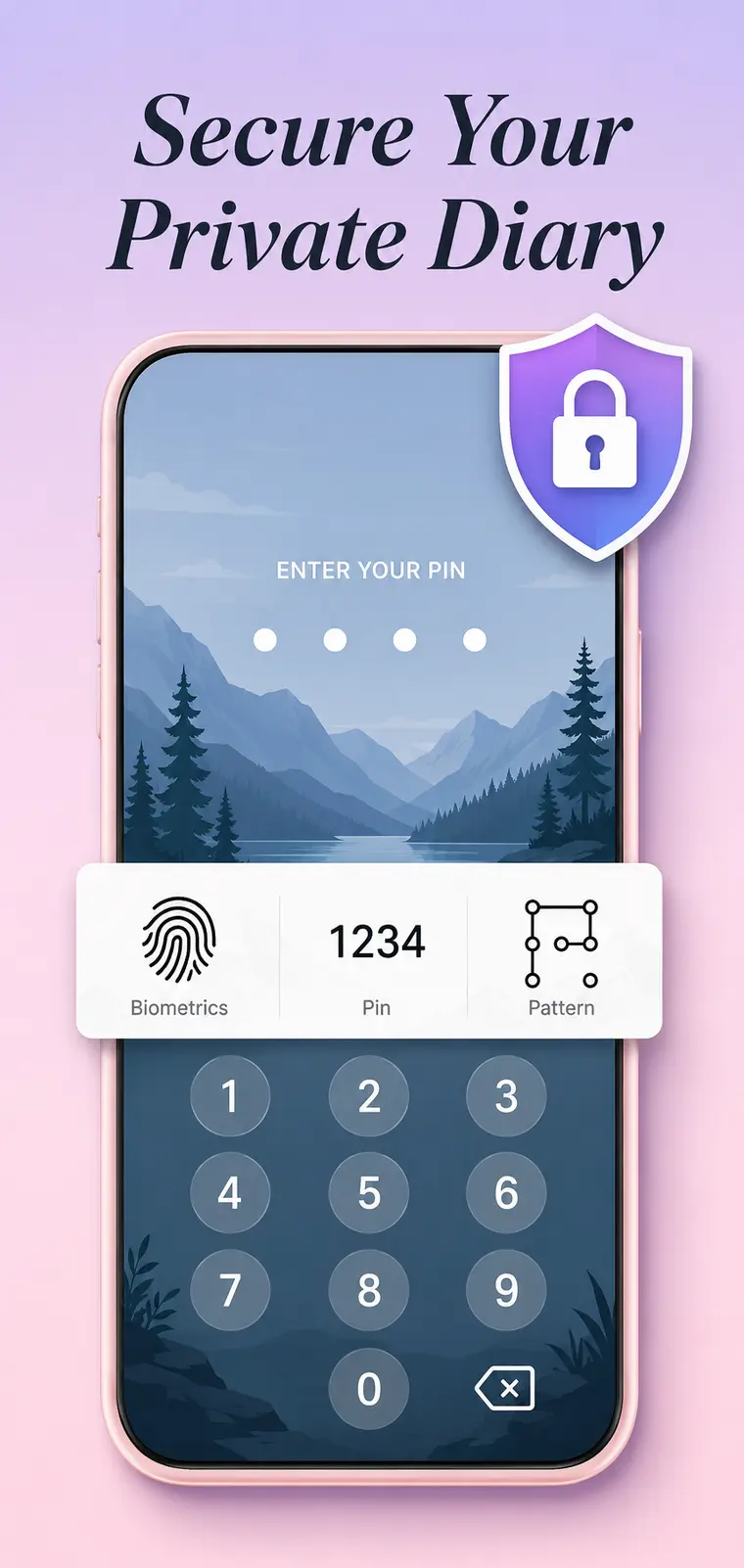
My Diary stores entries locally by default and offers an optional Google Drive backup that only runs if you turn it on.
Keeping backups private
A backup is only as private as the place it's stored:
- Use a Google account with a strong password and two-step verification.
- Don't back up to a shared or work account.
- Be careful with exported PDFs or text files. They're not locked like the app is.
Moving your diary to a new phone
- Make a fresh backup on your old phone.
- Install the same diary app on your new phone.
- Sign in to the same Google account inside the app.
- Choose "Restore" and wait for your entries to download.
- Check a few old entries, then set up your lock again.
How often should you back up?
Back up as often as you'd be upset to lose that much writing. For daily writers, a weekly or automatic backup makes sense. For occasional writers, monthly is usually fine. Always back up before a phone repair, a factory reset or switching phones.
Key takeaways
- A diary stored only on your phone disappears with your phone.
- Combine local storage with an optional Google Drive backup in your own account.
- Back up before repairs, resets and phone upgrades.
- Test a restore at least once so you know it works.
- Keep backup accounts secure with strong passwords and two-step verification.
Frequently asked questions
Does uninstalling a diary app delete my entries?
Usually yes, if entries are stored only on the phone. Make a backup before uninstalling.
Is Google Drive backup private?
The backup is stored in your own Google account, so it's as private as that account. Use a strong password and two-step verification.
Can I back up my diary without the internet?
A local backup works offline, but it stays on the same phone. For protection against losing the phone, you'll need a cloud backup, which needs an internet connection.
Will my diary lock still work after I restore a backup?
You may need to set up your PIN, pattern or fingerprint again after restoring on a new phone. Check the lock straight away after restoring.

We're an independent app studio in Pune, India. We build My Diary: Daily Journal & Lock and write these guides from what we learn making it and from the questions our users send us. Spotted an error? Email qunovixtechnologies@gmail.com.