Voice Translation Tips: How to Get Accurate English–Hindi Results
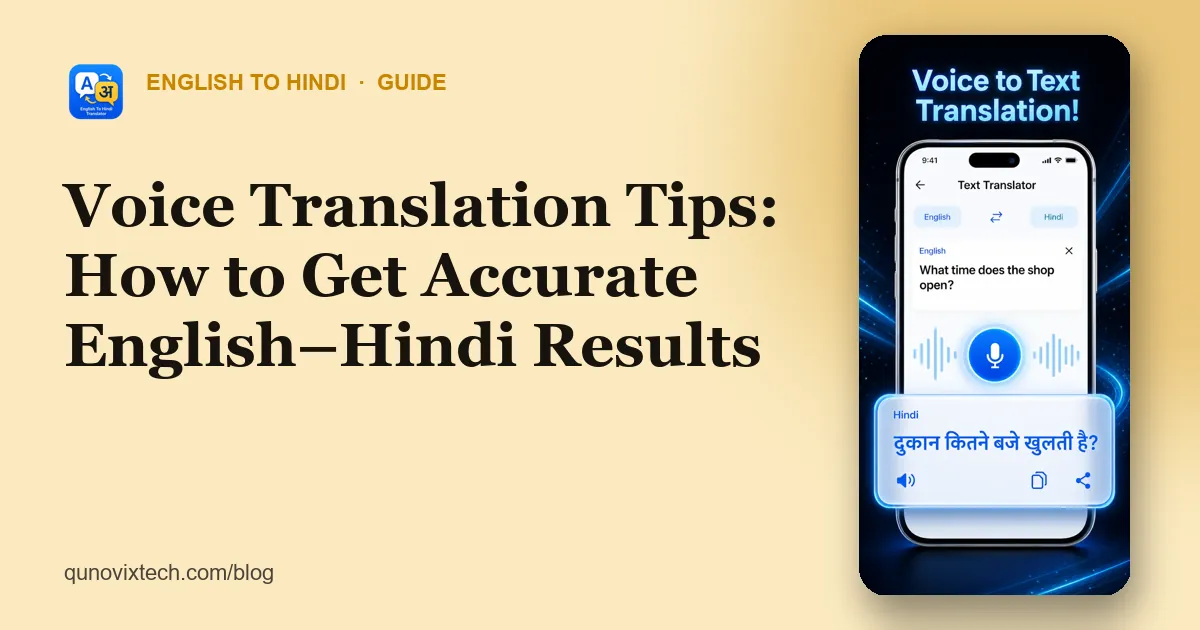
Voice translation is fast, but accuracy depends on how you speak. Learn practical tips for clearer voice translation and how to use conversation mode well.
- How voice translation works behind the scenes
- Ten speaking tips that improve accuracy
- How to hold a two-person conversation through a translator
Speaking into a translator feels like magic when it works and frustrating when it doesn't. Most problems come from how we speak, background noise or sentence structure. A few small changes make a big difference.
How voice translation works
Voice translation happens in three steps:
- Speech recognition turns your speech into text.
- Machine translation translates that text.
- Text-to-speech reads the translation aloud.
An error in step one carries through to the end. That's why speaking clearly matters so much.
10 tips for better voice translation
- Find a quiet spot. Background noise is the biggest cause of recognition errors.
- Hold the phone close, but not touching your mouth.
- Speak at a natural pace. Not too fast, not exaggeratedly slow.
- Use short sentences. One idea per sentence translates more accurately.
- Avoid slang and idioms. "It's a piece of cake" may be translated literally (see translation mistakes).
- Say names clearly. Or type them, since names are often misrecognised.
- Pause before and after. Let the app start listening before you speak.
- Check the recognised text. If it's wrong, correct it before translating.
- Choose the right direction. Make sure the app is set to English → Hindi or Hindi → English.
- Repeat or rephrase if needed. Simpler wording often works better.
Good vs difficult phrasing
| Harder to translate | Easier to translate |
|---|---|
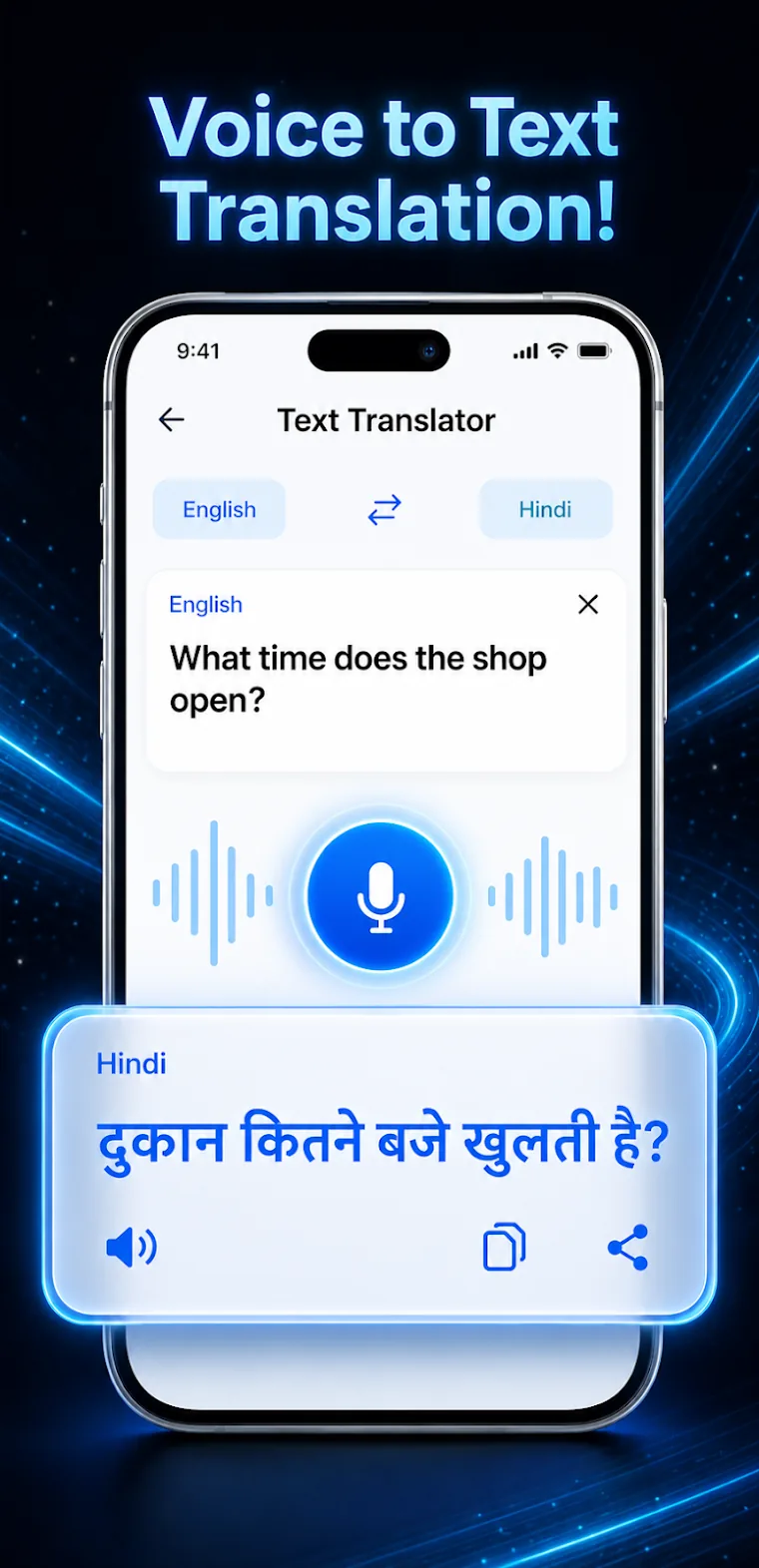
| "Could you possibly let me know if there's any chance the shop might open early?" | "What time does the shop open?" |
| "I'm feeling under the weather." | "I am not feeling well." |
| "Let's grab a bite." | "Let's eat something." |
Conversation mode: talking with someone
When two people don't share a language, a conversation mode lets each speak in their own language.
How to use conversation mode
- Open conversation mode. In English To Hindi Translator, each speaker gets their own microphone.
- Explain what's happening. Show the other person the screen and their microphone button.
- Take turns. One person speaks, waits for the translation, then the other replies.
- Read along. Translated messages appear in a chat layout so both people can follow.
- Use the speaker. Play translations aloud in noisy places.
Adjust the playback speed
If the spoken translation is too fast to follow, slow down the voice speed in settings. It's especially helpful when you're learning Hindi pronunciation.
When to be careful
Voice translation is great for everyday situations. For medical, legal or financial conversations, use a professional interpreter where possible, or confirm key details in writing.
Key takeaways
- Errors in speech recognition carry through to the translation.
- Speak clearly in short sentences, in a quiet place, without idioms.
- Check the recognised text before translating.
- Use conversation mode for back-and-forth chats, taking turns.
Frequently asked questions
How accurate is voice translation?
It's usually accurate for clear, simple sentences in quiet places. Noise, slang and long sentences reduce accuracy.
Why does my voice translation come out wrong?
Background noise, fast speech or idioms are common causes. Check the recognised text and rephrase if needed.
Can I have a conversation using a translator app?
Yes. Conversation mode gives each speaker a microphone and shows translations in a chat layout.
Can I slow down the spoken translation?
In English To Hindi Translator, you can adjust the voice speed of text-to-speech.

We're an independent app studio in Pune, India. We build English To Hindi Translator and write these guides from what we learn making it and from the questions our users send us. Spotted an error? Email qunovixtechnologies@gmail.com.