How to Set Reminders on Android That Actually Go Off
Missed a reminder that never rang? Learn how to set reliable reminders on Android, fix battery and alarm permission issues, and choose sounds you'll notice.
- How to set one-time and repeating reminders on Android
- Why reminders sometimes arrive late or not at all
- The settings to check on Samsung, Xiaomi, Oppo, Vivo and other phones
A reminder is only useful if it goes off at the right time. On Android, reminders sometimes arrive late or not at all, not because the app is broken, but because of battery-saving settings, missing permissions or Do Not Disturb.
This guide shows you how to set reminders on Android and how to make sure they actually ring.
How to set a reminder on Android
- Open your to-do or reminder app. Most to-do apps, including To Do List, let you add a reminder to any task.
- Create a task with a clear name. "Pay credit card bill" is better than "bill", because it's what you'll see in the notification.
- Set the date and time. Choose when you want to be reminded, not just when the task is due. For a bill due Friday, a Thursday reminder is more useful.
- Choose repeat if needed. Daily for medicines, weekly for bins, monthly for rent, yearly for birthdays.
- Pick a sound, voice or vibration. Use something distinct from your message tone so you notice it.
- Save and test. Set a test reminder two minutes ahead and lock your phone to confirm it arrives.
Why Android reminders don't go off
1. Battery optimisation
Android and many phone brands limit what apps can do in the background to save battery. If your reminder app is "optimised" or "restricted", its alarms may be delayed or blocked.
Fix: Settings → Apps → [your reminder app] → Battery → choose Unrestricted (or "Don't optimise"). The exact names vary by phone.
2. Alarms & reminders permission
On Android 12 and later, apps need the "Alarms & reminders" special access to schedule exact-time alerts. Without it, Android may deliver reminders at an approximate time instead.
Fix: Settings → Apps → Special app access → Alarms & reminders → allow your reminder app.
3. Notifications turned off
If notifications are blocked or set to silent, the reminder may arrive without any sound.
Fix: Settings → Apps → [app] → Notifications → make sure they're allowed and the reminder category is set to make sound.
4. Do Not Disturb
Do Not Disturb silences most notifications. Alarms can be allowed through, but app reminders often aren't.
Fix: In Do Not Disturb settings, add your reminder app to the exceptions list.
5. Brand-specific background killers
Some phone brands are more aggressive about closing apps. Look for these extra settings:
| Brand | Setting to check |
|---|---|
| Samsung | Battery → Background usage limits → remove the app from "Sleeping apps" |
| Xiaomi / Redmi / POCO | Enable Autostart and set Battery saver to "No restrictions" |
| Oppo / Realme | Allow Auto launch and background activity |
| Vivo | Allow background power consumption and auto-start |
| OnePlus | Battery optimisation → set the app to "Don't optimise" |
Menu names change between Android versions, so search your settings for "battery" or "autostart" if you can't find them.
Choose the right kind of alert
Not every reminder needs the same alert:
- Voice reminders read the task out loud, which is useful when your phone is across the room or you're driving.
- A distinct sound works for important tasks.
- Vibration only suits meetings and quiet places.
Reminder tips that make a difference
- Remind yourself before, not at, the deadline. Give yourself time to act.
- Use location-free wording. "Buy milk on the way home" tells you what to do when the reminder fires.
- Snooze honestly. If you snooze more than twice, reschedule the task instead.
- Don't over-remind. Too many notifications teach you to ignore them all.
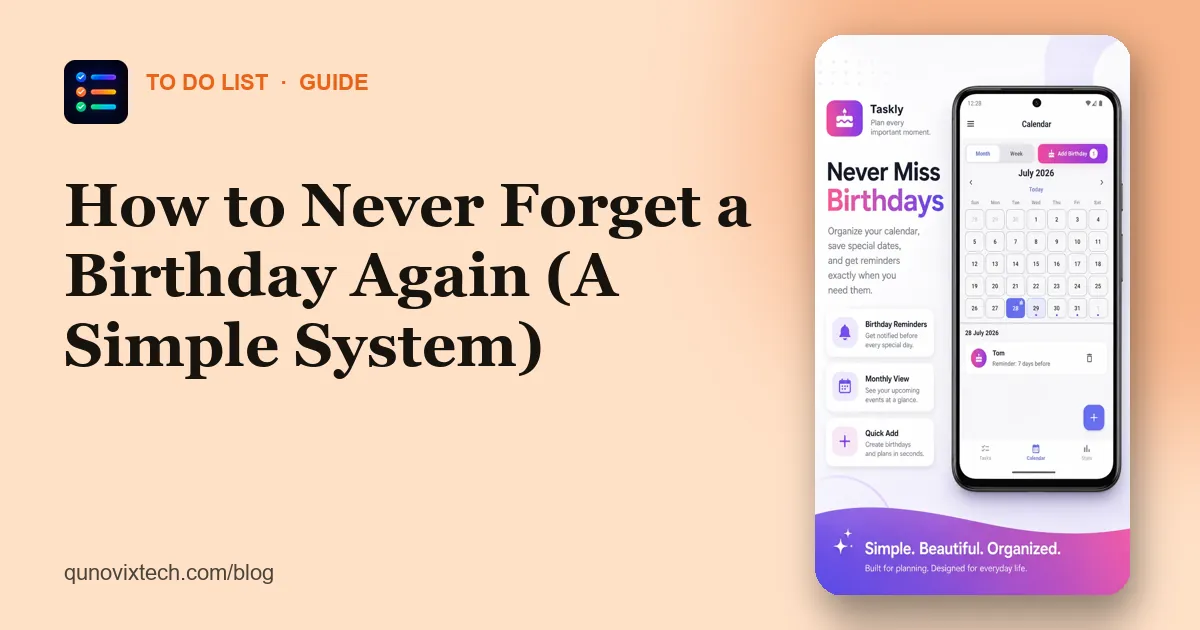
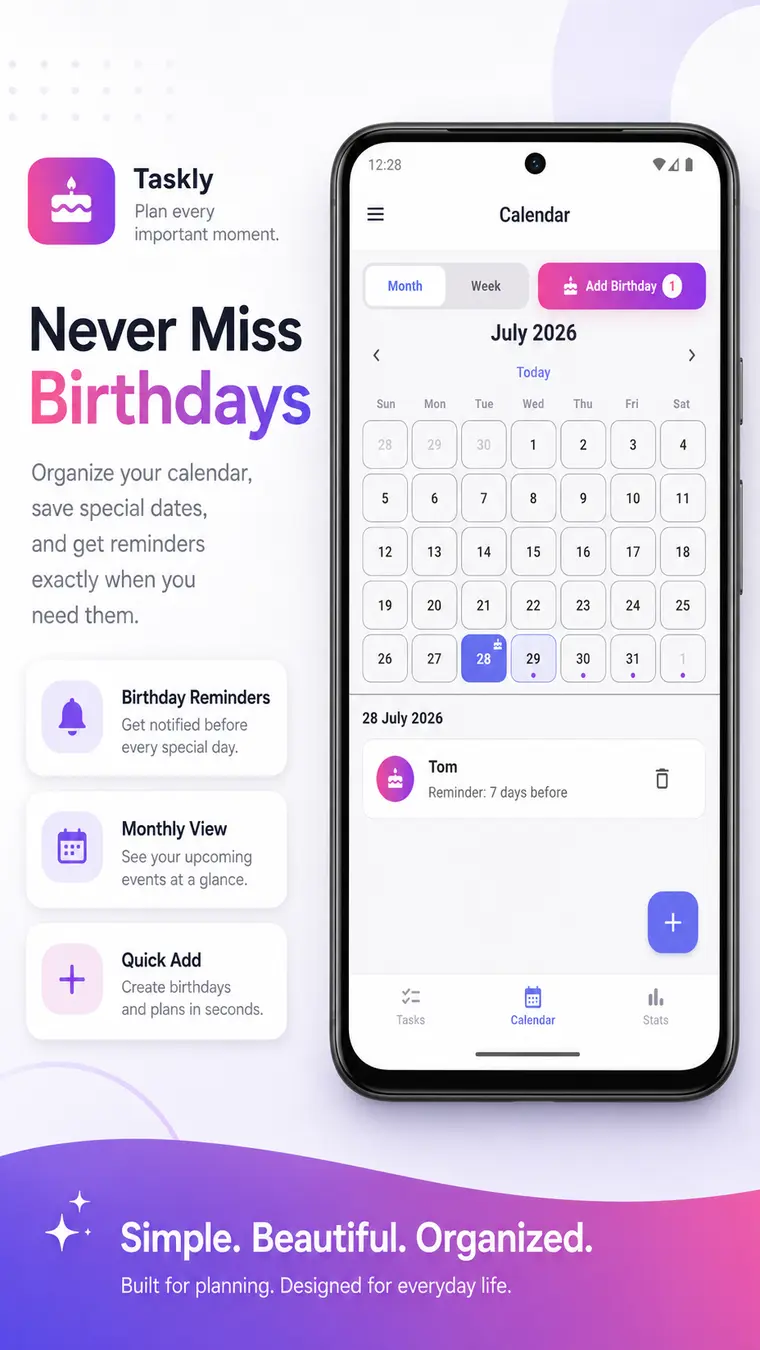
For birthdays and anniversaries, set yearly reminders a few days early so you have time to buy a gift. See our guide on never forgetting a birthday again.
Key takeaways
- Set reminders before the deadline, with a clear task name.
- Allow unrestricted battery use and the Alarms & reminders permission.
- Add your reminder app to Do Not Disturb exceptions if needed.
- Check brand-specific autostart and background settings.
- Test with a two-minute reminder after changing settings.
Frequently asked questions
Why are my Android reminders late?
Usually because of battery optimisation or a missing "Alarms & reminders" permission. Set the app's battery usage to unrestricted and allow exact alarms.
How do I set a repeating reminder on Android?
When creating the reminder, choose a repeat option such as daily, weekly, monthly or yearly.
Can Android read my reminders aloud?
Some to-do apps support voice reminders that speak the task name when the reminder fires. Check the app's reminder sound settings.
Will reminders work if my phone restarts?
Well-built reminder apps reschedule alarms after a restart. If yours don't, check that the app is allowed to auto-start.

We're an independent app studio in Pune, India. We build To Do List: Tasks & Reminders and write these guides from what we learn making it and from the questions our users send us. Spotted an error? Email qunovixtechnologies@gmail.com.