How to Type in Hindi on Android (Keyboard, Transliteration and Voice)
Learn three easy ways to type in Hindi on Android: a Devanagari keyboard, typing Hindi with English letters (transliteration) and voice typing, step by step.
- How to add a Hindi keyboard on Android
- How transliteration lets you type Hindi using English letters
- How to use voice typing in Hindi
Typing in Hindi on your phone is easier than many people think. You don't need to learn a complicated keyboard layout. Android supports three simple methods.
Method 1: Transliteration (type Hindi with English letters)
This is the easiest method for most people. You type how a word sounds in English letters, and the keyboard converts it to Devanagari.
Type namaste → get नमस्ते. Type aap kaise hain → get आप कैसे हैं.
How to set it up (Gboard)
- Open your keyboard settings. Settings → System → Languages & input → On-screen keyboard → Gboard. (Or open Gboard and tap the settings gear.)
- Tap Languages. Then tap "Add keyboard".
- Search for Hindi. Select Hindi.
- Choose the transliteration layout. It's usually shown as "abc → हिन्दी" or similar.
- Tap Done. Switch between keyboards using the globe icon or by long-pressing the space bar.
Method 2: Devanagari keyboard
If you know the Hindi alphabet, a Devanagari layout lets you type letters directly. It's faster for experienced typists.
Follow the same steps as above, but choose the हिन्दी (Devanagari) layout instead of transliteration.
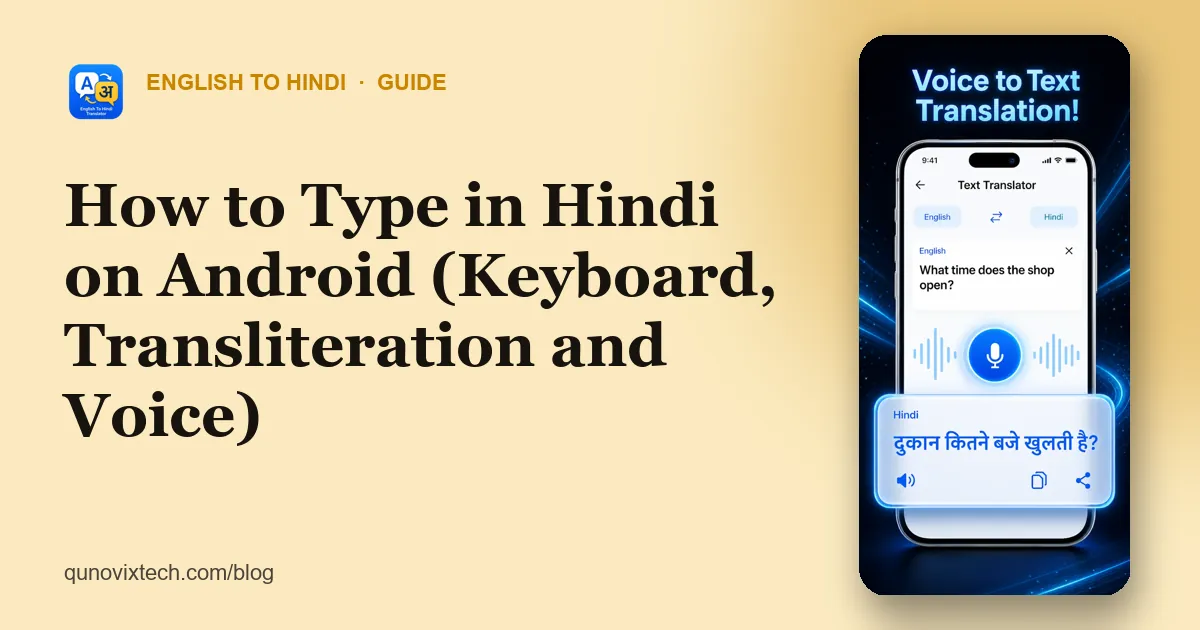
Method 3: Voice typing
Speak in Hindi and let your phone type it for you.
- Open any app with a text box.
- Tap the microphone icon on your keyboard.
- Make sure Hindi is selected as the voice language (you may need to add it in voice typing settings).
- Speak clearly at a natural pace.
- Check and correct the text.
Which method should you choose?
| Method | Best for | Learning needed |
|---|---|---|
| Transliteration | Most people, casual typing | Almost none |
| Devanagari keyboard | Fluent writers, frequent typing | Learn the layout |
| Voice typing | Long messages, quick notes | None |
Tips for accurate transliteration
- Pick from suggestions. The keyboard shows several options. Tap the one you want.
- Spell phonetically. Use "aa" for long vowels, as in "aap".
- Learn a few tricky sounds. "sh" for श, "ch" for च, "chh" for छ.
Translating instead of typing
If you want to write something in Hindi but aren't sure of the words, type it in English and translate it. Then copy the Hindi text into your message.
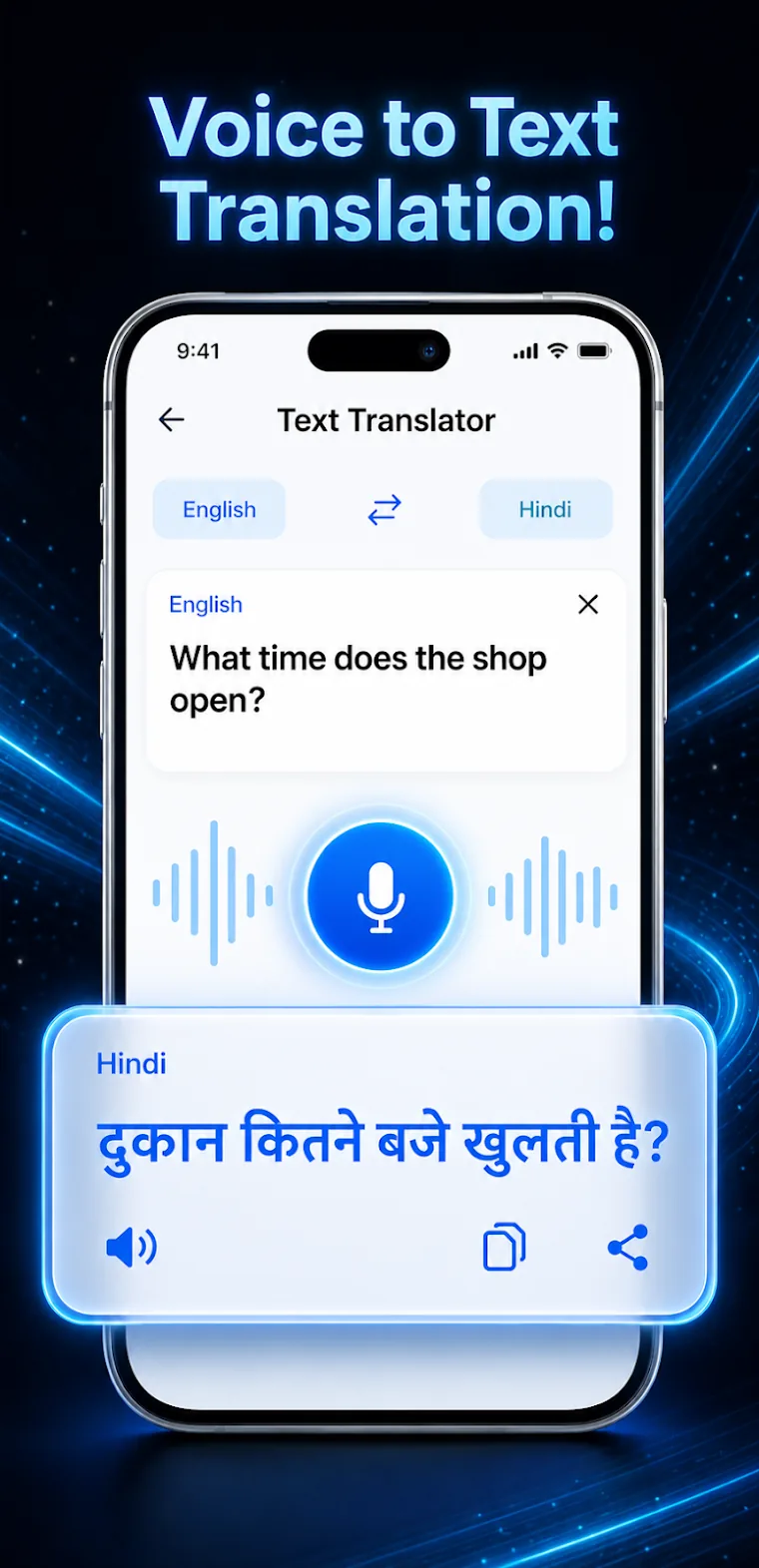
English To Hindi Translator translates text and voice between English and Hindi, and lets you copy or share the result straight into WhatsApp, email or any other app.
Key takeaways
- Transliteration lets you type Hindi using English letters.
- Add a Hindi keyboard in Gboard settings and choose transliteration or Devanagari.
- Voice typing works well in Hindi for longer messages.
- Not sure what to write? Translate from English and copy the result.
Frequently asked questions
How can I type Hindi using an English keyboard?
Add a Hindi transliteration keyboard (shown as "abc → हिन्दी" in Gboard). Type words phonetically in English letters and they convert to Devanagari.
How do I switch between English and Hindi keyboards?
Tap the globe icon or long-press the space bar on Gboard.
Can I use voice typing in Hindi?
Yes. Select Hindi in your keyboard's voice typing settings and tap the microphone.
Do I need a separate app to type in Hindi?
No. Most Android keyboards, including Gboard, support Hindi.

We're an independent app studio in Pune, India. We build English To Hindi Translator and write these guides from what we learn making it and from the questions our users send us. Spotted an error? Email qunovixtechnologies@gmail.com.