How to Translate Text With Your Camera (English and Hindi)
Point your phone at a sign, menu or document and translate it instantly. Learn how camera translation works and tips for accurate English–Hindi results.
- How camera translation recognises and translates text
- Step-by-step: translating a sign, menu or document
- Tips for sharper, more accurate results
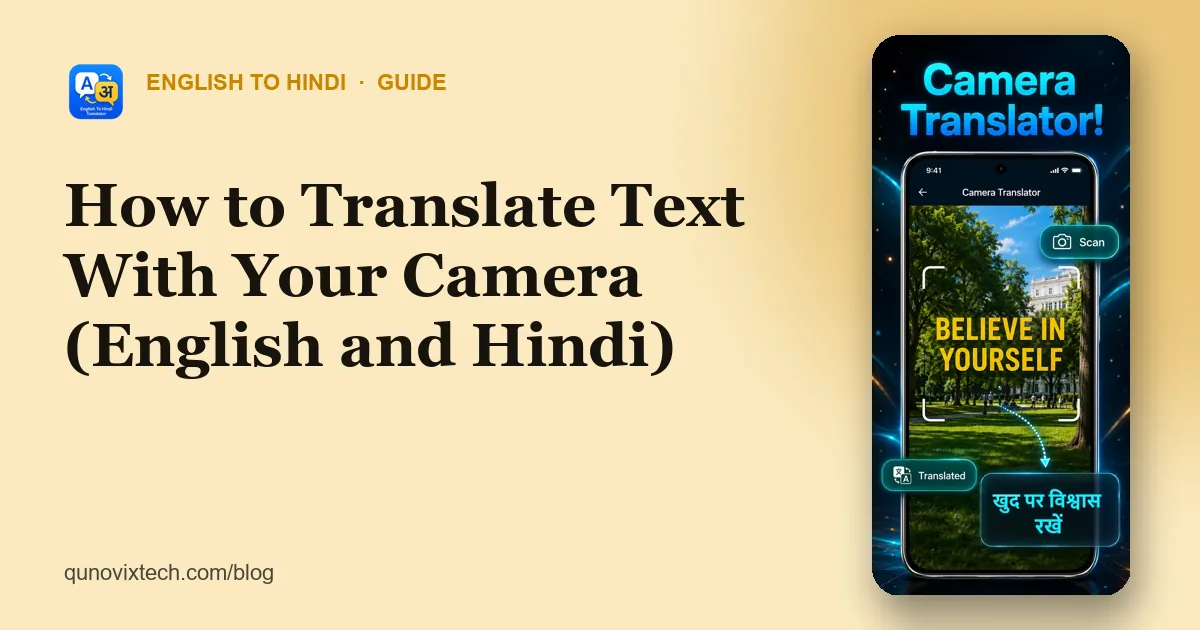
Signs, menus, forms and labels are often in a language you can't read. Camera translation solves that in seconds: point your phone at the text and read the translation. Here's how it works and how to get the best results.
How camera translation works
Camera translation combines two technologies:
- Text recognition (OCR). The app finds and reads the printed letters in the image.
- Machine translation. The recognised text is translated into your chosen language.
For English and Hindi, the app needs to recognise both Latin letters and the Devanagari script used for Hindi.
How to translate text with your camera
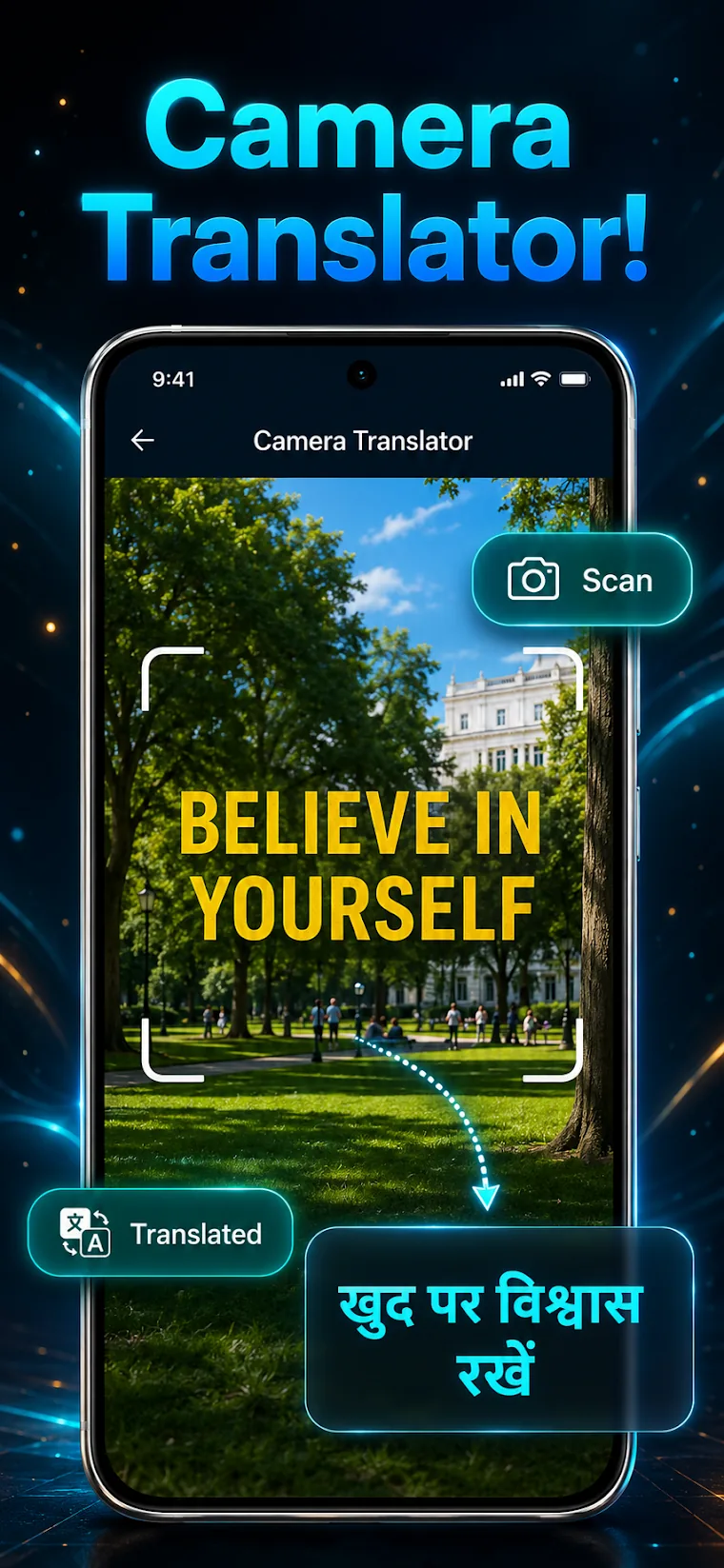
- Open the camera translator. In English To Hindi Translator, choose the Camera Translator.
- Choose the direction. English to Hindi, or Hindi to English.
- Point at the text. Hold the phone steady and parallel to the text.
- Capture or scan. Tap the scan button to recognise the text.
- Read the translation. Check the result and tap the speaker to hear it.
- Save or share. Copy, share or save useful translations.
Tips for better results
| Tip | Why |
|---|---|
| Use good, even light | Shadows and glare confuse text recognition |
| Hold the phone parallel | Angled text is harder to read |
| Fill the frame with the text | Small text loses detail |
| Keep it steady | Blur reduces accuracy |
| Clean your camera lens | Smudges blur everything |
| One section at a time | Long documents are easier in parts |
What works well, and what doesn't
Works well: - Printed signs and notices. - Menus and product labels. - Typed documents and forms.
Harder: - Handwriting, especially cursive. - Stylised or decorative fonts. - Text on curved or shiny surfaces. - Very small print or low-resolution images.
Check important translations
Machine translation is excellent for getting the gist. For anything important, such as medical instructions, legal documents or official forms, ask a fluent speaker or professional to confirm. Read common translation mistakes to understand where machines struggle.
Everyday uses
- Travel: station signs, bus boards and directions.
- Food: menus and ingredient lists.
- Shopping: product labels and instructions.
- Learning: reading Hindi books, newspapers or school worksheets.
- Work: notices and printed documents.
Combine with the dictionary
If a translated word is unfamiliar, look it up in the app's dictionary for meanings, synonyms and antonyms. It's a great way to build vocabulary as you go.
Key takeaways
- Camera translation uses text recognition plus machine translation.
- Good light, a steady hand and a straight angle give the best results.
- Printed text works best. Handwriting and decorative fonts are harder.
- Double-check important translations with a fluent speaker.
Frequently asked questions
How do I translate text from a picture?
Open a camera translator, point it at the text, capture it and read the translation on screen.
Can camera translation read Hindi text?
Yes. English To Hindi Translator recognises both English and Devanagari text.
Does camera translation work on handwriting?
It can struggle with handwriting, especially cursive. Printed text gives the best results.
Is camera translation accurate?
It's usually good for signs, menus and printed text. For important documents, have a fluent speaker check.

We're an independent app studio in Pune, India. We build English To Hindi Translator and write these guides from what we learn making it and from the questions our users send us. Spotted an error? Email qunovixtechnologies@gmail.com.