How to Choose a Good Learning App for Your Child: A Parent's Checklist
Not all kids' apps are equal. Use this parent's checklist to choose a good learning app: educational value, age fit, safety, parental controls, privacy and ads.
- The features that separate good learning apps from distracting ones
- Safety and privacy checks to do before installing
- How to use learning apps well once you've chosen one
App stores are full of apps that call themselves "educational". Some genuinely help children learn. Others are mostly flashing rewards. A quick checklist helps you choose well.
The parent's checklist
Learning value
- Does it teach something specific, such as letters, words, numbers or shapes?
- Does it encourage your child to think, tap, choose or create, rather than just watch?
- Is the pace calm enough for learning, not overstimulating?
Age fit
- Is it designed for your child's age?
- Is the language clear and pronunciation easy to understand?
- Can young children use it without help after a quick demo?
Safety and parental control
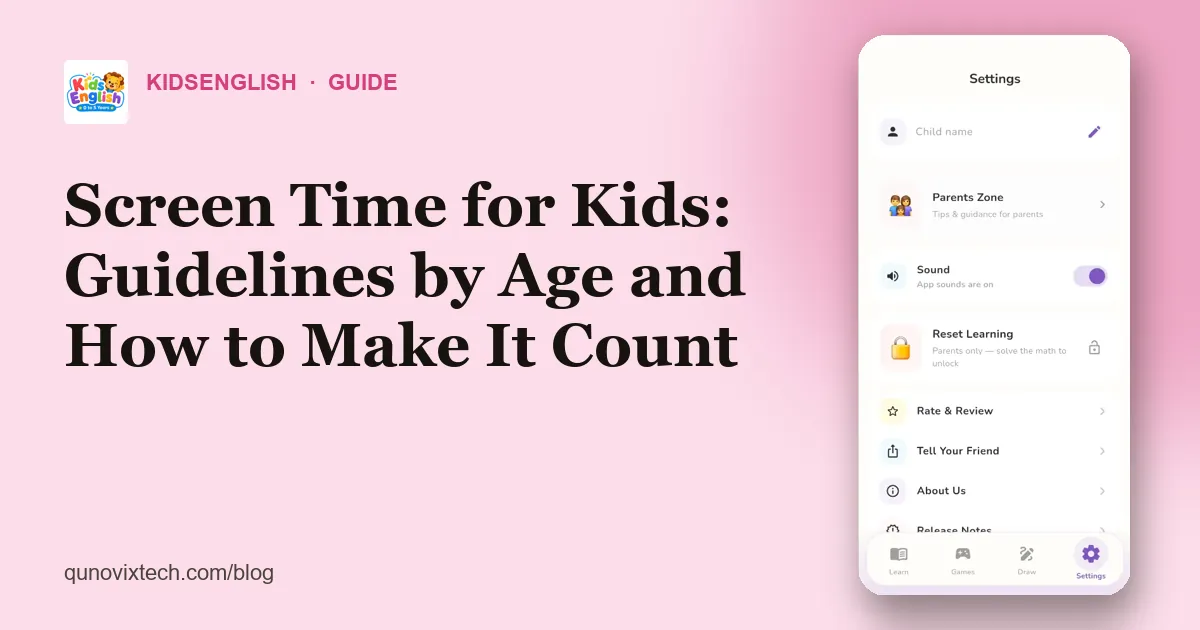
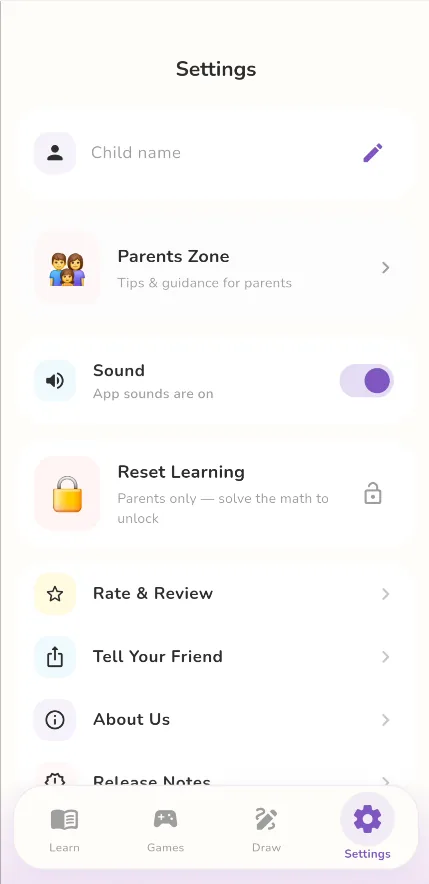
- Is there a parents-only area protected by a check that young children can't easily pass, like a simple maths question or number entry?
- Are settings, links and purchases kept behind that check?
- Does it avoid links that take children out of the app?
Privacy
- Read the privacy policy: what data does the app collect?
- Does it ask for permissions that make sense (for example, no contacts or location for a word-learning app)?
- Check the app's Data safety section on Google Play.
Ads and purchases
- Does the app show ads? If so, are they suitable for children and kept away from accidental taps?
- Are in-app purchases clearly separated and protected?
- Look for apps in Google Play's "Teacher Approved" or family-friendly sections where possible.
Design
- Big buttons, clear pictures and simple navigation.
- Sound that can be turned off.
- A way to track progress.
Red flags
- Endless autoplay or no natural stopping point.
- Constant rewards, coins and pop-ups that distract from learning.
- Pressure to buy, or purchases a child can make easily.
- Requests for unnecessary permissions.
How to choose a learning app
- Decide what you want your child to learn. Letters, words, numbers or creativity.
- Search for apps for that age. Read the description and screenshots.
- Check the Data safety section and privacy policy.
- Install and try it yourself first. Spend 10 minutes exploring.
- Check the parent area and settings.
- Play together the first few times. See how your child engages.
Using the app well
- Keep sessions short and within screen time guidelines.
- Play together and talk about what they're learning.
- Connect app learning with real life: find the apple after learning "apple."
- Mix with offline learning games.
How KidsEnglish approaches it
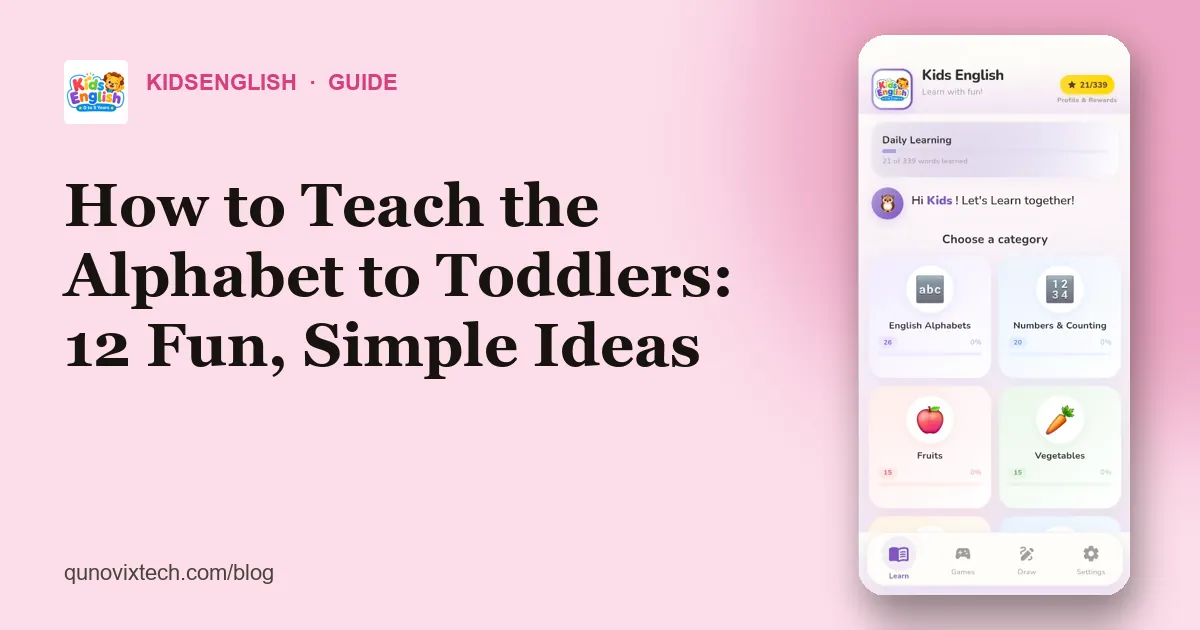
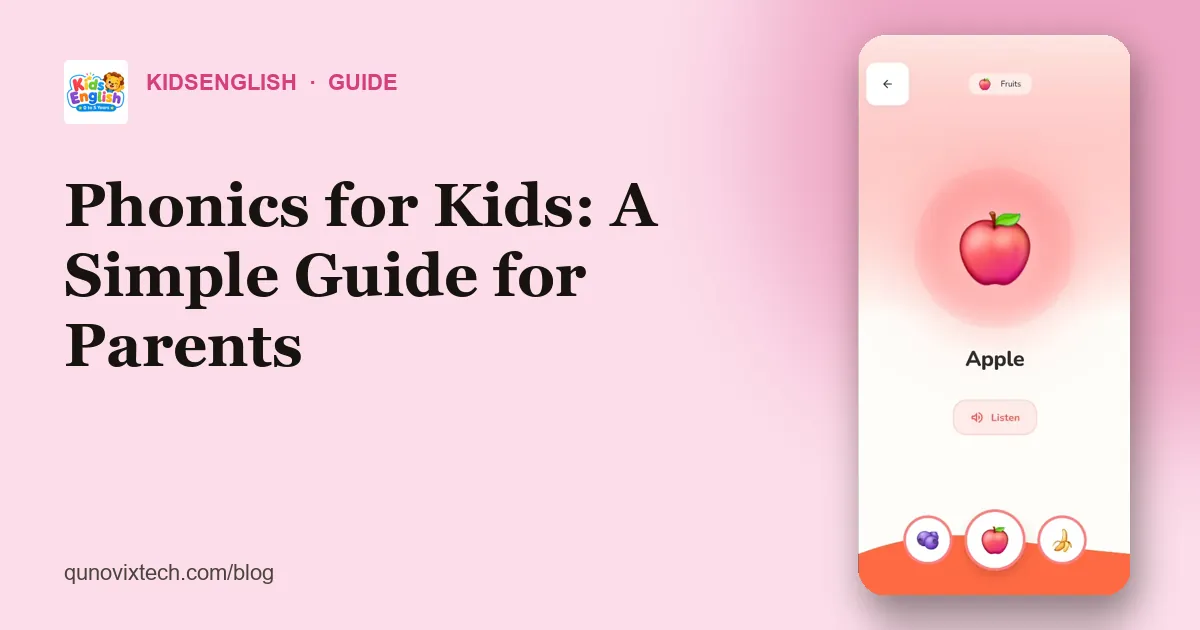
KidsEnglish focuses on first English words, letters, numbers and simple games. Children tap pictures to hear words, and progress shows how many words they've learned. Settings such as the child's name, sound and progress reset sit in a parents-only area protected by a number check.
Key takeaways
- Choose apps that teach something specific through active play.
- Check age fit, parental controls, privacy, permissions and ads.
- Try the app yourself first and play together at the start.
- Keep sessions short and connect learning to real life.
Frequently asked questions
How do I know if an app is educational?
Look for a clear learning goal, active participation and a calm, age-appropriate design.
What is a parental gate?
A simple check, like a maths question or number entry, that young children can't easily complete, protecting settings and purchases.
How can I check an app's privacy?
Read its privacy policy and the Data safety section on Google Play, and review the permissions it requests.
How long should kids use learning apps?
For young children, short sessions within WHO and paediatric screen time guidance, ideally with a parent.

We're an independent app studio in Pune, India. We build Kids English and write these guides from what we learn making it and from the questions our users send us. Spotted an error? Email qunovixtechnologies@gmail.com.